Online Keyboard Shortcuts
OnlineShortcuts.com makes it easy to learn step by step the essential keyboard shortcuts for Windows, MacOS, and Linux to work faster.
Visit
About Online Keyboard Shortcuts
Online Keyboard Shortcuts, available at OnlineShortCuts.com, is a free, comprehensive, and beginner-friendly reference guide designed to help you master the most important keyboard shortcuts across Windows, macOS, and Linux operating systems. At its core, this tool is a curated collection of essential key combinations that allow you to perform common tasks faster and more efficiently, reducing your reliance on a mouse or trackpad. Whether you are a complete beginner who has never used a shortcut before, or a seasoned professional looking to brush up on your skills, this website serves as your go-to resource. The main value proposition is simplicity and accessibility: you do not need to install any software, create an account, or navigate through complex menus. You simply visit the site, find the shortcut you need, and start using it immediately. The content is organized by operating system and then further broken down into system-wide shortcuts, application-specific shortcuts (like for File Explorer, Command Prompt, and web browsers), and even special categories like text editing and virtual desktop management. The website also offers downloadable cheat sheets in PDF and PNG formats, making it easy to keep a physical or digital copy handy. In a world where every second counts, learning these shortcuts can dramatically speed up your workflow, reduce repetitive strain, and make you feel more in control of your computer. This tool is for anyone who uses a computer regularly, from students and office workers to developers and designers, and it is completely free with no ads, upsells, or spyware.
Features of Online Keyboard Shortcuts
Comprehensive Cross-Platform Coverage
This feature ensures you are never left guessing, regardless of the computer you are using. The site organizes shortcuts into three main operating systems: Windows, macOS, and Linux. For example, you can quickly find Windows specific shortcuts like Win + L to lock your screen, macOS shortcuts like Command + C to copy, and Linux shortcuts for your desktop environment. This makes it an invaluable resource for people who work across multiple platforms or are transitioning from one operating system to another. The coverage is thorough, including system-wide commands and application-specific ones.
Organized and Searchable Shortcut Library
Navigating through hundreds of keyboard shortcuts can be overwhelming, but this site makes it easy with a logical structure. Shortcuts are grouped into clear categories such as "Windows Systemwide," "Windows Key Shortcuts," "Application Specific" (like Command Prompt and File Explorer), "Text Editing," "Virtual Desktop," and "Web Browsers." This organization allows you to quickly zero in on the exact area you need help with. Instead of scrolling through a random list, you can jump directly to the section relevant to your current task, saving you time and frustration.
Downloadable Cheat Sheets
One of the most practical features is the ability to download the entire shortcut library as a handy PDF file or as a PNG image in both dark and light themes. This is perfect for users who want to learn offline, print a physical copy to pin on their wall, or keep a digital reference on their phone or tablet. The cheat sheets are designed to be clear and easy to read at a glance. This feature transforms the website from a simple online reference into a portable learning tool that you can take anywhere, making it easier to build muscle memory for the shortcuts.
Beginner-Friendly and Humorous Presentation
The website is designed with a welcoming and encouraging tone, making it approachable for absolute beginners. The language is simple and direct, and the Frequently Asked Questions section even includes a touch of lighthearted humor, with answers like "You’ll figure it out" for how to use the site. This removes the intimidation factor often associated with technical topics. The goal is not just to provide information, but to make the learning process enjoyable and stress-free. You are guided step-by-step, and the focus is always on practical, actionable shortcuts that you can start using right away.
Use Cases of Online Keyboard Shortcuts
Boosting Daily Productivity for Office Workers
An office worker who spends their day in Microsoft Office, email, and web browsers can dramatically improve their efficiency by learning a few key shortcuts. For example, using Alt + Tab to switch between open apps, Ctrl + C and Ctrl + V for copying and pasting, and Win + D to quickly show the desktop. The site provides a clear list of these time-saving combinations. Instead of constantly reaching for the mouse to navigate menus, the user can keep their hands on the keyboard, completing tasks like formatting text, managing files, and switching windows in a fraction of the time.
Learning for New Computer Users and Students
For someone who is just starting to use a computer, keyboard shortcuts can feel like a secret code. This website serves as an excellent learning tool by presenting the information in a simple, categorized format. A student can start with basic shortcuts like Ctrl + Z (undo) and Ctrl + S (save) from the Text Editing section, and gradually build up to more advanced ones. The downloadable cheat sheets are perfect for studying, and the non-intimidating tone encourages exploration. This use case is about building foundational computer literacy and confidence.
Streamlining System Administration and Development
IT professionals, system administrators, and developers often need to work quickly and efficiently across multiple applications. The site includes specific sections for Command Prompt shortcuts (like F7 to view command history) and virtual desktop management (like Win + Ctrl + D to create a new desktop). These shortcuts allow power users to navigate their system, manage tasks, and run commands without interrupting their flow. This reduces the cognitive load of remembering complex menu paths and helps maintain focus on the task at hand, whether it is debugging code or managing server configurations.
Creating a Customized Workflow for Power Users
Experienced users can use the site to discover new shortcuts they were not aware of, allowing them to further optimize their personal workflow. For example, a graphic designer might learn about Win + Shift + S for a quick screenshot, or a writer might use Win + H for voice typing. The comprehensive list acts as a checklist for users to audit their current habits and identify areas for improvement. By systematically learning the shortcuts in each category, a power user can eliminate almost all mouse usage, achieving a state of fluid and uninterrupted interaction with their computer.
Frequently Asked Questions
What is Computer Keyboard Shortcuts?
Computer Keyboard Shortcuts, hosted at OnlineShortCuts.com, is a free, comprehensive online guide that lists the most important keyboard shortcuts for Windows, macOS, and Linux operating systems. It is designed to help users of all skill levels improve their productivity by providing quick, easy access to commonly used commands and hotkeys, reducing the need to use a mouse for routine tasks.
How do I use Computer Keyboard Shortcuts?
Using the website is very straightforward. Simply visit OnlineShortCuts.com, and you will see the shortcuts organized by operating system and category. Browse the list to find the shortcut you need for your specific task. For example, if you want to lock your Windows screen, look under "Windows Systemwide Keyboard Shortcuts" and find Win + L. Then, simply press those keys on your keyboard to perform the action. You can also download the cheat sheets for offline use.
How accurate are the keyboard shortcuts?
The shortcuts are curated to be as accurate as possible for the specified software versions and operating systems. However, software updates can sometimes change hotkeys or introduce new ones. It is always a good practice to verify a shortcut with the specific version of the software or operating system you are running. The site strives to keep the information up-to-date, but it is a good idea to test a new shortcut in a safe context first.
Is there a mobile version of the site?
The website is designed to be fully responsive and accessible on a variety of devices. This means you can easily view the shortcut lists and cheat sheets on your mobile phone, tablet, or desktop computer. The layout adjusts to fit your screen size, ensuring a comfortable browsing experience whether you are at your desk or on the go. You can also download the PNG cheat sheets to view them offline on your mobile device.
Explore more in this category:
Similar to Online Keyboard Shortcuts

Product Launch Checklist
A free launch checklist for SaaS, apps, AI tools and more. Every step says why it matters and when you can skip it.

HomeAnswerBook
Practical, independent guides to home repairs, maintenance, costs, troubleshooting, and everyday fixes.
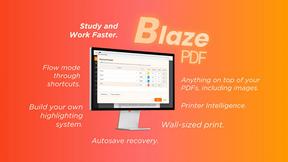
BlazePDF
Highlight faster. Study in flow with custom shortcuts and a workflow built around you. Print smarter, or turn any page into a tiled poster.

Build Mode for Mac
Build Mode is a Mac app that turns focused sessions into visible progress, so you can see the work adding up before the results arrive.



Efficienco
Efficienco is a free collection of practical online calculators for construction, materials, home improvement, engineering, trades, and business.