RemoveTexts vs TinyFast
Side-by-side comparison to help you choose the right tool.

RemoveTexts
Effortlessly remove text and watermarks from images in seconds with our user-friendly AI tool, no design skills needed.
Last updated: March 11, 2026

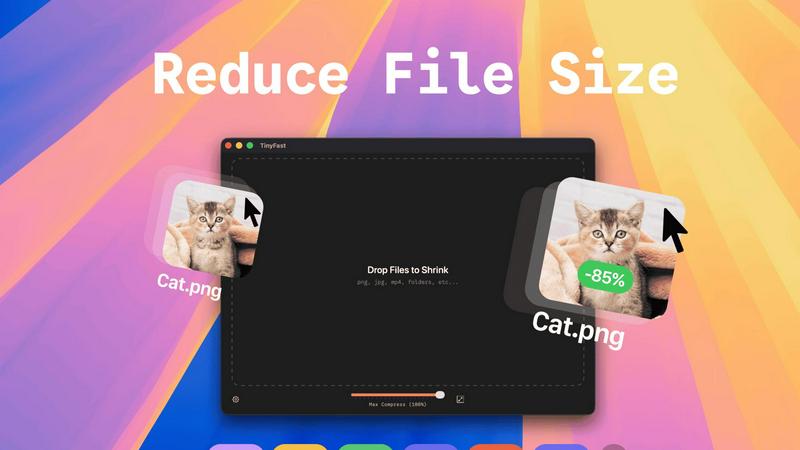
Shrink files quickly and privately on your Mac with a simple drag and drop.
Last updated: February 28, 2026
Visual Comparison
RemoveTexts

TinyFast
Feature Comparison
RemoveTexts
Paint to Remove
This feature allows users to brush over specific areas of text they wish to remove with precision. It provides control over the removal process, making it easy to target only the unwanted text while leaving the rest of the image intact.
Auto Remove All
Leverage the power of AI with the Auto Remove All feature that detects and removes every text element in an image automatically. This one-click solution is perfect for those who want to quickly clean up images without the need for manual adjustments.
Edit & Replace Text
With the Edit & Replace Text feature, users can not only remove unwanted text but also replace it with new text while matching the original font style. This is particularly useful for those who want to modify captions or add new information seamlessly.
Remove Objects
In addition to text removal, the Remove Objects feature allows users to erase unwanted visual elements, such as logos or people, from their images. This enhances the overall aesthetics of the photo without compromising quality.
TinyFast
Blazing-Fast Local Compression
TinyFast shrinks large files in seconds using optimized native engines built for speed. Because everything happens on your Mac, there's no waiting for files to upload to the internet or download back to your computer. This local processing makes the entire compression experience incredibly quick and responsive, saving you valuable time in your daily workflow.
100% Private & Secure by Design
Your files never leave your machine. TinyFast operates with total privacy by design, meaning no uploads to cloud servers and no risk of your sensitive or confidential assets being stored or accessed by third parties. This is perfect for anyone working under Non-Disclosure Agreements (NDAs) or who simply values their digital privacy.
Simple Drag-and-Drop Operation
Using TinyFast couldn't be easier. There are no complicated settings to learn. You simply drag your file or even an entire folder into the app, and then drag the compressed, optimized version back out to your desktop or any other location. This intuitive process makes file shrinking accessible to everyone, regardless of technical skill.
Batch Processing for Multiple Files
You can save massive amounts of time by compressing many files at once. Just drop an entire folder of images, videos, or documents into TinyFast, and it will process them all in one go, delivering a batch of optimized output files in seconds. This is ideal for preparing assets for a project or cleaning up a cluttered downloads folder.
Use Cases
RemoveTexts
E-commerce Product Photos
Online sellers can use RemoveTexts to clean up product images by removing watermarks or distracting text, making their listings more appealing to potential buyers. This helps in creating a professional look that can increase sales.
Social Media Content
Content creators and marketers can utilize RemoveTexts to enhance their social media visuals by removing unwanted text from images, such as captions or watermarks from stock photos, ensuring their posts stand out in crowded feeds.
Legal Document Redaction
Professionals in legal fields can rely on RemoveTexts to redact sensitive information from documents by removing text while preserving the original layout and background. This ensures confidentiality while maintaining document integrity.
Personal Photo Editing
Everyday users can enhance their personal photos by removing date stamps, captions, or any unwanted text that detracts from the beauty of their images. This allows for cleaner, more visually appealing memories to share with friends and family.
TinyFast
Web Developers Optimizing Site Assets
Web developers can use TinyFast to quickly compress all images, CSS, and JavaScript files for a website directly on their Mac. This reduces page load times without ever risking client assets by uploading them to an online service, ensuring both performance and client confidentiality are maintained.
Designers Preparing Files for Client Delivery
Graphic and UI/UX designers often need to send high-quality proofs or final assets to clients via email or file-sharing links, which have size limits. TinyFast lets them compress PNG, JPG, and PDF files locally to perfect, shareable sizes while keeping unreleased designs completely private and secure on their own device.
Content Creators Managing Video Clips
Video creators, bloggers, and social media managers can shrink large MP4 or MOV video files quickly to send via email, upload to platforms faster, or save storage space on their hard drives. Doing it locally with TinyFast means their raw footage never risks being exposed online during the compression process.
Professionals Emailing Large Documents
Professionals who need to email large PDF reports, presentations (DOCX), or batches of images can hit attachment size limits. TinyFast solves this by reducing these document file sizes dramatically right on their computer, ensuring the email sends successfully without using insecure online file compressors.
Overview
About RemoveTexts
RemoveTexts is an innovative AI-powered online tool designed to effortlessly erase unwanted text and watermarks from images. It appeals to a broad audience, from marketers and designers to everyday users who need clean visuals without any hassle. With just a simple upload and a few clicks, users can achieve professional-level results in a matter of seconds. The primary value proposition of RemoveTexts lies in its ability to automate the tedious process of text removal, freeing users from the complexities of software like Photoshop. This tool utilizes advanced deep learning technology to analyze and reconstruct the surrounding image background, ensuring that the edited area appears seamless and natural. Whether you are looking to remove watermark logos, captions from screenshots, or any unwanted text, RemoveTexts delivers high-quality results without requiring any design skills. It is user-friendly, efficient, and perfect for anyone looking to enhance their images quickly and effectively.
About TinyFast
TinyFast is your super-powered, privacy-focused file shrinker that lives right on your Mac. It's designed to make your digital life simpler by compressing a wide variety of files—like images (PNG, JPEG), videos (MP4, MOV), documents (PDF), and more—directly on your computer. The magic happens locally, which means your files never have to travel over the internet to some unknown server. You simply drag your file into the app and drag the smaller, optimized version back out. It’s incredibly fast because there are no upload or download waits. This app is built especially for developers, designers, and creators who value their time, their workflow speed, and the security of their confidential assets. Whether you're preparing images for a website, sending video clips via email, or managing project files, TinyFast ensures you can reduce file sizes dramatically without compromising on privacy or quality. It's the fast, safe, and simple solution for anyone who needs to save space and share files efficiently without the hassle and risk of online tools.
Frequently Asked Questions
RemoveTexts FAQ
Is RemoveTexts free to use?
Yes, RemoveTexts is a free online tool that allows users to remove text from images without any costs involved. Simply upload your image and start editing.
What image formats are supported?
RemoveTexts supports JPG, PNG, and WebP image formats, allowing for a wide range of uploads. Ensure your image size is within the 10MB limit for optimal performance.
How quickly can I expect results?
RemoveTexts is designed for speed, with an average processing time of less than 30 seconds. Most users can expect their edited images ready to download almost instantly.
Can RemoveTexts handle complex backgrounds?
Absolutely! The AI technology used by RemoveTexts is adept at handling complex backgrounds, ensuring that text removal is seamless and the result looks as natural as possible. Your image quality remains intact with no visible artifacts.
TinyFast FAQ
Is TinyFast really free to use?
Yes, TinyFast offers a completely free forever plan! You can compress up to 5 files per day with access to all core features. This is a great way to try it out and see how it fits into your workflow. For unlimited use, there are affordable one-time purchase and monthly subscription options available.
What file types does TinyFast support?
TinyFast supports a wide range of common file types. This includes images (PNG, JPG, TIFF, HEIC, WEBP, GIF, BMP, SVG), videos (MP4, MOV, M4V), documents (PDF, DOCX), code files (JS, CSS, JSON), and audio (MP3). It's a universal tool designed to handle most files you need to shrink.
How does local compression work?
Local compression means the entire process happens on your Mac's own processor. When you drag a file into TinyFast, the app uses its built-in compression engines to analyze and shrink the file directly on your computer's hardware. The file data is never sent over the internet, guaranteeing speed and privacy.
Can I resize images and videos with TinyFast?
Absolutely! Beyond just compression, TinyFast includes a handy feature to automatically resize the resolution of your images and videos. This allows you to not only make a file smaller in terms of data size but also physically reduce its dimensions, which is perfect for web use or specific platform requirements.
Alternatives
RemoveTexts Alternatives
RemoveTexts is an innovative AI-powered tool designed to effortlessly remove text from images in mere seconds, eliminating the need for complex software like Photoshop. It falls under the category of image editing solutions, specifically focused on text removal. Many users seek alternatives to RemoveTexts for various reasons, such as pricing, specific feature requirements, or compatibility with different platforms. When looking for an alternative, it’s essential to consider factors such as ease of use, the effectiveness of text removal, supported languages, and the overall quality of the output. Finding the right image editing tool that meets your needs can significantly enhance your workflow. It's important to evaluate how user-friendly the platform is, the speed at which it operates, and the range of features it offers. Additionally, checking for customer reviews and testimonials can provide valuable insights into the tool's reliability and performance. A good alternative should not only match your requirements but also provide an enjoyable editing experience.
TinyFast Alternatives
TinyFast is a Mac application designed to quickly shrink files like images, videos, and documents directly on your computer. It falls into the category of local file compression and optimization tools, prized for its speed and strong privacy focus. People often explore other options for various reasons. They might need a tool that works on Windows or online, require a free solution, or look for specific features like support for different file formats or more advanced editing controls. It's a normal part of finding the perfect tool for your unique workflow. When searching for a different tool, consider what matters most to you. Key factors include whether the tool works on your operating system, how it handles your privacy, the types of files it can compress, its speed, and of course, its cost. Balancing these elements will help you find a great fit.