RemoveTexts vs Shrinkpad
Side-by-side comparison to help you choose the right tool.

RemoveTexts
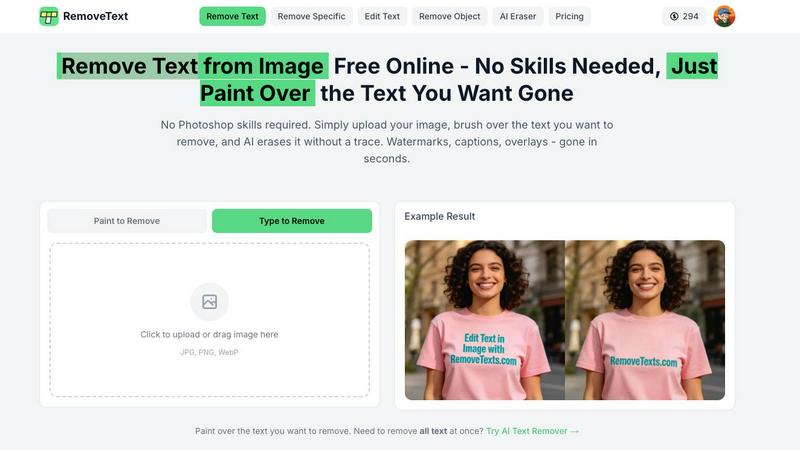
Effortlessly remove text and watermarks from images in seconds with our user-friendly AI tool, no design skills needed.
Last updated: March 11, 2026

Shrinkpad
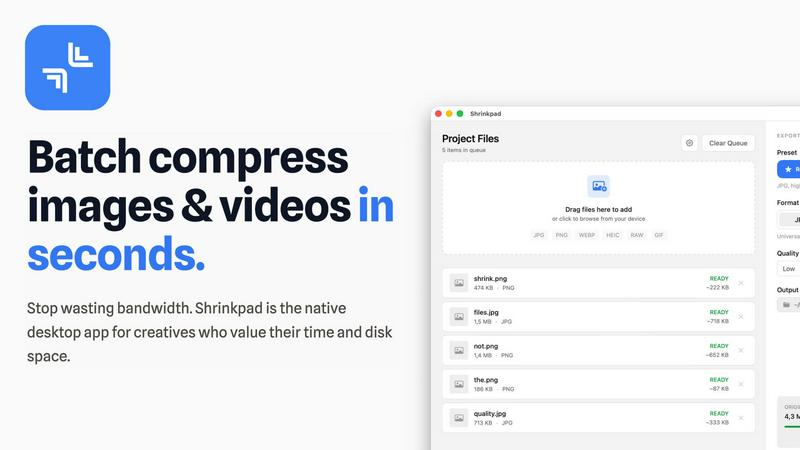
Shrinkpad quickly compresses your images and videos on Mac to save space and time.
Last updated: February 28, 2026
Visual Comparison
RemoveTexts
Shrinkpad
Feature Comparison
RemoveTexts
Paint to Remove
This feature allows users to brush over specific areas of text they wish to remove with precision. It provides control over the removal process, making it easy to target only the unwanted text while leaving the rest of the image intact.
Auto Remove All
Leverage the power of AI with the Auto Remove All feature that detects and removes every text element in an image automatically. This one-click solution is perfect for those who want to quickly clean up images without the need for manual adjustments.
Edit & Replace Text
With the Edit & Replace Text feature, users can not only remove unwanted text but also replace it with new text while matching the original font style. This is particularly useful for those who want to modify captions or add new information seamlessly.
Remove Objects
In addition to text removal, the Remove Objects feature allows users to erase unwanted visual elements, such as logos or people, from their images. This enhances the overall aesthetics of the photo without compromising quality.
Shrinkpad
Smart Batch Compression
Shrinkpad makes handling large projects effortless with its powerful batch processing. You can drag and drop thousands of images and videos at once, and the app will process them all in a single queue. It automatically analyzes each file's visual complexity to apply the perfect compression ratio, aiming to reduce size without creating noticeable artifacts. This means you can compress an entire project's assets in minutes, not hours, saving you from the tedious work of optimizing files one by one.
Intelligent Folder Mode
Stop dragging files individually. With Folder Mode, you simply drop any folder onto Shrinkpad, and it instantly scans and detects all supported media files inside, including those in subfolders. It smartly identifies over 30 image formats (including RAW files) and all major video formats, adding them to your batch list while safely ignoring non-media files. This feature is perfect for organizing and optimizing exported assets from tools like Figma or Photoshop in one fell swoop.
Privacy-First Local Processing
Your files are your business. Shrinkpad ensures complete privacy by performing all compression work directly on your Mac. Nothing is ever uploaded to the cloud. This not only keeps your sensitive client work or personal projects secure but also means the process is lightning-fast, unhindered by your internet upload speed. You get powerful optimization without ever sacrificing control over your data.
Pro-Grade Format Support
Shrinkpad is built to handle the real-world mix of files that creatives use daily. It supports a wide array of formats out of the box, including JPG, PNG, WEBP, AVIF, HEIC, MP4, and MOV. You can even process images and videos together in the same batch. The app is fully optimized for Apple Silicon Macs, using multi-threaded compression to deliver blazing-fast performance and help you reclaim disk space efficiently.
Use Cases
RemoveTexts
E-commerce Product Photos
Online sellers can use RemoveTexts to clean up product images by removing watermarks or distracting text, making their listings more appealing to potential buyers. This helps in creating a professional look that can increase sales.
Social Media Content
Content creators and marketers can utilize RemoveTexts to enhance their social media visuals by removing unwanted text from images, such as captions or watermarks from stock photos, ensuring their posts stand out in crowded feeds.
Legal Document Redaction
Professionals in legal fields can rely on RemoveTexts to redact sensitive information from documents by removing text while preserving the original layout and background. This ensures confidentiality while maintaining document integrity.
Personal Photo Editing
Everyday users can enhance their personal photos by removing date stamps, captions, or any unwanted text that detracts from the beauty of their images. This allows for cleaner, more visually appealing memories to share with friends and family.
Shrinkpad
Web Designers & Developers
If you're building a website or app, large images and videos are the biggest culprits for slow load times. Shrinkpad helps you quickly optimize all your visual assets in bulk, significantly reducing bundle sizes. This leads to faster website performance and improved user experience, with many users seeing better Lighthouse scores. It's the perfect final step before deploying your project.
Photographers & Content Creators
Modern cameras and phones create massive files. Shrinkpad is ideal for photographers who need to archive hundreds of high-resolution shots or content creators managing gigabytes of video footage. You can compress your media library to save vast amounts of storage space while preserving the quality needed for portfolios, client delivery, or social media, all without ever uploading private content online.
Designers Preparing Assets
Designers often export assets at 2x or 4x resolution for various uses, resulting in unnecessarily large files. Instead of manually re-exporting from Figma, Sketch, or Photoshop, you can export everything at full size and let Shrinkpad handle the bulk optimization and renaming. This saves hours of repetitive busywork, ensuring your project files are lean and organized.
Teams & Small Studios
For teams collaborating on projects, sharing large asset folders can be a bandwidth nightmare. Shrinkpad's Team license allows multiple users to quickly optimize files before sharing them via email, cloud storage, or project management tools. This streamlines collaboration, saves on storage costs, and keeps everyone's local drives clutter-free.
Overview
About RemoveTexts
RemoveTexts is an innovative AI-powered online tool designed to effortlessly erase unwanted text and watermarks from images. It appeals to a broad audience, from marketers and designers to everyday users who need clean visuals without any hassle. With just a simple upload and a few clicks, users can achieve professional-level results in a matter of seconds. The primary value proposition of RemoveTexts lies in its ability to automate the tedious process of text removal, freeing users from the complexities of software like Photoshop. This tool utilizes advanced deep learning technology to analyze and reconstruct the surrounding image background, ensuring that the edited area appears seamless and natural. Whether you are looking to remove watermark logos, captions from screenshots, or any unwanted text, RemoveTexts delivers high-quality results without requiring any design skills. It is user-friendly, efficient, and perfect for anyone looking to enhance their images quickly and effectively.
About Shrinkpad
Shrinkpad is your all-in-one desktop solution for quickly and easily reducing the size of your photos and videos, right on your Mac. If you're tired of large media files eating up your precious storage space or slowing down your website, this app is for you. It's designed to be incredibly simple: just drag and drop your files—or even entire folders—into the app, choose your settings, and let Shrinkpad compress them in seconds. The best part? Everything happens locally on your computer. Your files are never uploaded to the cloud, which means complete privacy for your work and no waiting for slow internet connections. Whether you're a photographer with hundreds of high-res shots, a designer preparing assets for a project, or a content creator managing lots of video clips, Shrinkpad helps you save gigabytes of space while keeping the visual quality you need. It's the fast, private, and powerful way to optimize your media. It's the native desktop app built for creatives who value their time, disk space, and the security of their work.
Frequently Asked Questions
RemoveTexts FAQ
Is RemoveTexts free to use?
Yes, RemoveTexts is a free online tool that allows users to remove text from images without any costs involved. Simply upload your image and start editing.
What image formats are supported?
RemoveTexts supports JPG, PNG, and WebP image formats, allowing for a wide range of uploads. Ensure your image size is within the 10MB limit for optimal performance.
How quickly can I expect results?
RemoveTexts is designed for speed, with an average processing time of less than 30 seconds. Most users can expect their edited images ready to download almost instantly.
Can RemoveTexts handle complex backgrounds?
Absolutely! The AI technology used by RemoveTexts is adept at handling complex backgrounds, ensuring that text removal is seamless and the result looks as natural as possible. Your image quality remains intact with no visible artifacts.
Shrinkpad FAQ
Can I use Shrinkpad for free?
Yes! Shrinkpad offers a Free Starter plan that lets you try the core compression features at no cost. This plan allows you to process up to 10 files per batch, supports common formats like JPG and PNG, and has a maximum file size limit of 1GB. It's a great way to test the app and see how much space you can save before deciding to upgrade.
What file formats does Shrinkpad support?
Shrinkpad supports a wide range of image and video formats. For images, it handles JPG, PNG, WEBP, AVIF, HEIC, and even professional RAW camera formats. For video, it supports major formats like MP4 and MOV. The app automatically detects over 30 different media formats when you use Folder Mode.
Does Shrinkpad support video compression?
Absolutely! Shrinkpad isn't just for images. It fully supports compressing video files like MP4 and MOV. You can even mix images and videos in the same batch queue, and Shrinkpad will apply the optimal compression settings for each file type, helping you save huge amounts of space on large video clips.
Are my files uploaded to the cloud?
No, never. Privacy is a core principle of Shrinkpad. All processing happens 100% locally on your Mac. Your files are never sent to or stored on any external server. This ensures your sensitive work remains completely confidential and also makes the compression process very fast, as it doesn't depend on your internet connection.
Alternatives
RemoveTexts Alternatives
RemoveTexts is an innovative AI-powered tool designed to effortlessly remove text from images in mere seconds, eliminating the need for complex software like Photoshop. It falls under the category of image editing solutions, specifically focused on text removal. Many users seek alternatives to RemoveTexts for various reasons, such as pricing, specific feature requirements, or compatibility with different platforms. When looking for an alternative, it’s essential to consider factors such as ease of use, the effectiveness of text removal, supported languages, and the overall quality of the output. Finding the right image editing tool that meets your needs can significantly enhance your workflow. It's important to evaluate how user-friendly the platform is, the speed at which it operates, and the range of features it offers. Additionally, checking for customer reviews and testimonials can provide valuable insights into the tool's reliability and performance. A good alternative should not only match your requirements but also provide an enjoyable editing experience.
Shrinkpad Alternatives
Shrinkpad is a Mac application designed for image and video compression. It falls into the category of media optimization tools, helping users reduce file sizes directly on their computer without using the cloud. People often look for different tools for various reasons. Maybe they need a solution that works on Windows or a mobile device, or they are looking for a free option or a tool with more specialized editing features. It's a common and smart step to explore what else is available. When choosing a different tool, consider what's most important for your workflow. Key things to think about include whether the tool works on your operating system, if it handles batch processing, how it manages your privacy, and of course, your budget.